Mail
 Calendar
 Aster Bridge
 Tor access
How email tracking pixels work and how to block them
Most of the marketing email you get knows the moment you open it. It usually knows roughly where you were at the time and what kind of device you were holding, and it reports all of that back to the sender without asking you. The tool that does this is called a tracking pixel, and it has been a normal part of email for well over twenty years.
It is not only newsletters, either. Sales teams use tracking pixels to see when you read their pitch, and recruiters use them to see whether you opened a job offer. Plenty of everyday tools add them to ordinary one-to-one messages without the person sending them ever thinking about it.
This post covers how tracking pixels work, how links get tracked as well, and what you can do about both of them.
What a tracking pixel is
A tracking pixel is a tiny image, usually a single transparent dot, that the sender places somewhere in the message. You never see it, because it is either invisible or hidden behind something else in the design.
The trick is in where that image lives. It is not attached to the email. It sits on the sender’s server, and the address it loads from contains a unique code that belongs to you and that exact message. When your mail app opens the email and fetches the image, that request tells the server that you opened it.
What the sender learns
One image request carries more information than most people expect. From that single request, the sender can usually see:
- The exact time you opened the message, and every time you opened it again.
- Your IP address, which gives away your rough location.
- The type of device and mail app you used to read it.
- Whether you forwarded it, since a new person opening it shows up as a new open.
That data usually goes into a marketing dashboard, and a lot of it ends up shared with advertising and analytics companies. Some senders use it to work out when you are most likely to read your mail, while others use it to decide when to follow up on a sale.
Tracking links are the other half
Pixels track opens, and links track clicks. Most marketing email runs every link through a redirect on the sender’s server, so a click on any link first visits that server and logs your click before it sends you on to the real page.
Links also tend to carry tracking codes in the address itself, like utm_source, fbclid, and gclid. Those codes follow you onto the website you land on, where they connect the visit back to the exact email and campaign that sent you there.
How to tell if an email is tracking you
Without tools, it is hard to tell. A few signs that a message is probably tracked:
- It came from a newsletter, a store, or a marketing platform.
- Images are part of the design, and you see a message asking you to load them.
- Hovering over a link shows a long address on a different domain from the sender’s.
- The sender follows up within minutes of you opening their message.
The reliable way to know is to use a mail app that checks for you. Aster scans every message for known trackers and shows you a count, so instead of guessing you see something like 3 trackers found and blocked at the top of the message.
How to block tracking pixels
There are three common ways to stop tracking pixels, and they offer very different levels of protection.
Turn off remote images. Most mail apps have a setting that stops images from loading until you allow them. Without the image request, the pixel never fires. The downside is that a lot of newsletters look broken until you load images, and loading them fires the pixel anyway.
Use a mail app that loads images through a proxy. Some apps fetch every image through their own servers, which hides your IP address and your location. The sender still finds out that you opened the message, though, and that is often the part they care about most.
Use a mail app that strips trackers out. The strongest option is a mail app that recognizes tracking pixels and removes them before the message is shown, while still letting you see the rest of the images. That way the sender learns nothing, and the email still looks the way it should.
How Aster handles it
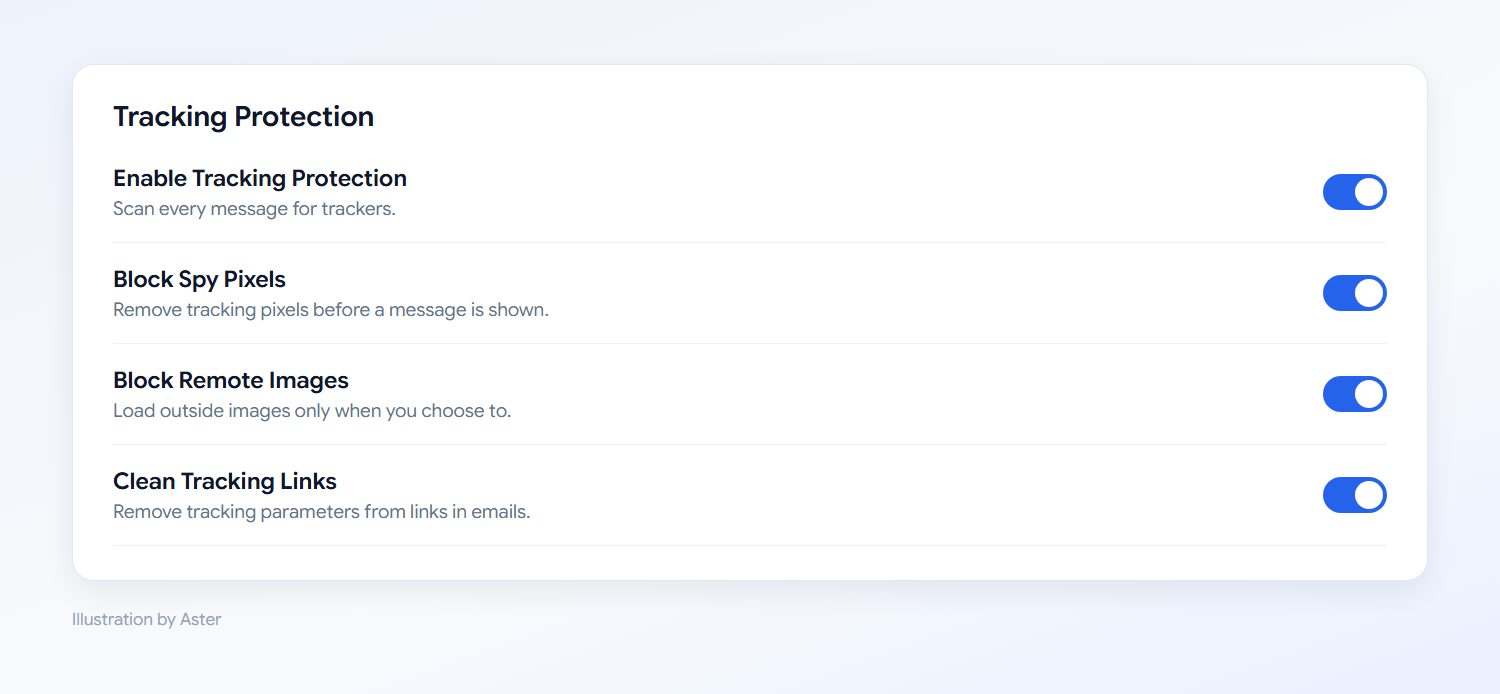
Tracking protection is on by default in Aster, and you can find every option under Settings in Security and Tracking Protection. Here is what each option does:
- Enable Tracking Protection is the main switch that blocks tracking elements embedded in your mail.
- Block Spy Pixels finds known tracking pixels and removes them from every message.
- Clean Tracking Links removes tracking codes like
utm_sourcefrom the links in your mail.
Each option shows you a count of what was blocked on every message, so you can see tracking protection working as you read.
A few more habits that help
- Unsubscribe from lists you no longer read, since every email is another chance to track you.
- Use an email alias for sign-ups to keep stores from linking your activity together.
- Hover over a link before you click it to see where it really goes.
- Avoid the Load images button on mail from senders you do not know.
Tracking pixels are only one part of what an email provider can see about you. Our post on what we encrypt and what we see covers the rest of it from our side.

Founder and CEO of Aster Privacy.