Mail
Mail  Aster Bridge
  Tor access
 How to buy your own email domain
An email address at your own domain, like you@yourname.com, is the only kind of email address you truly own. It looks more professional than a shared address, it gives you a whole set of addresses on one domain, and if you ever switch providers, the domain moves with you, so your address never has to change.
Until now, getting one meant creating an account at a domain registrar, putting your name and home address into the public WHOIS directory, and copying DNS records between two dashboards until verification finally passed. That last part is where most people give up.
We’ve removed all of it. You can now buy a domain directly inside Aster Mail, and the whole process comes down to three steps:
- Search for the name you want
- Pick your favorite ending
- Pay and let the setup run itself
There’s no registrar account, no DNS configuration, and no personal information published anywhere. Some endings cost only a few dollars for the first year. This guide walks through each step, and then through what actually happens behind the scenes, because that part is worth understanding too.
Step 1: Open the domain search
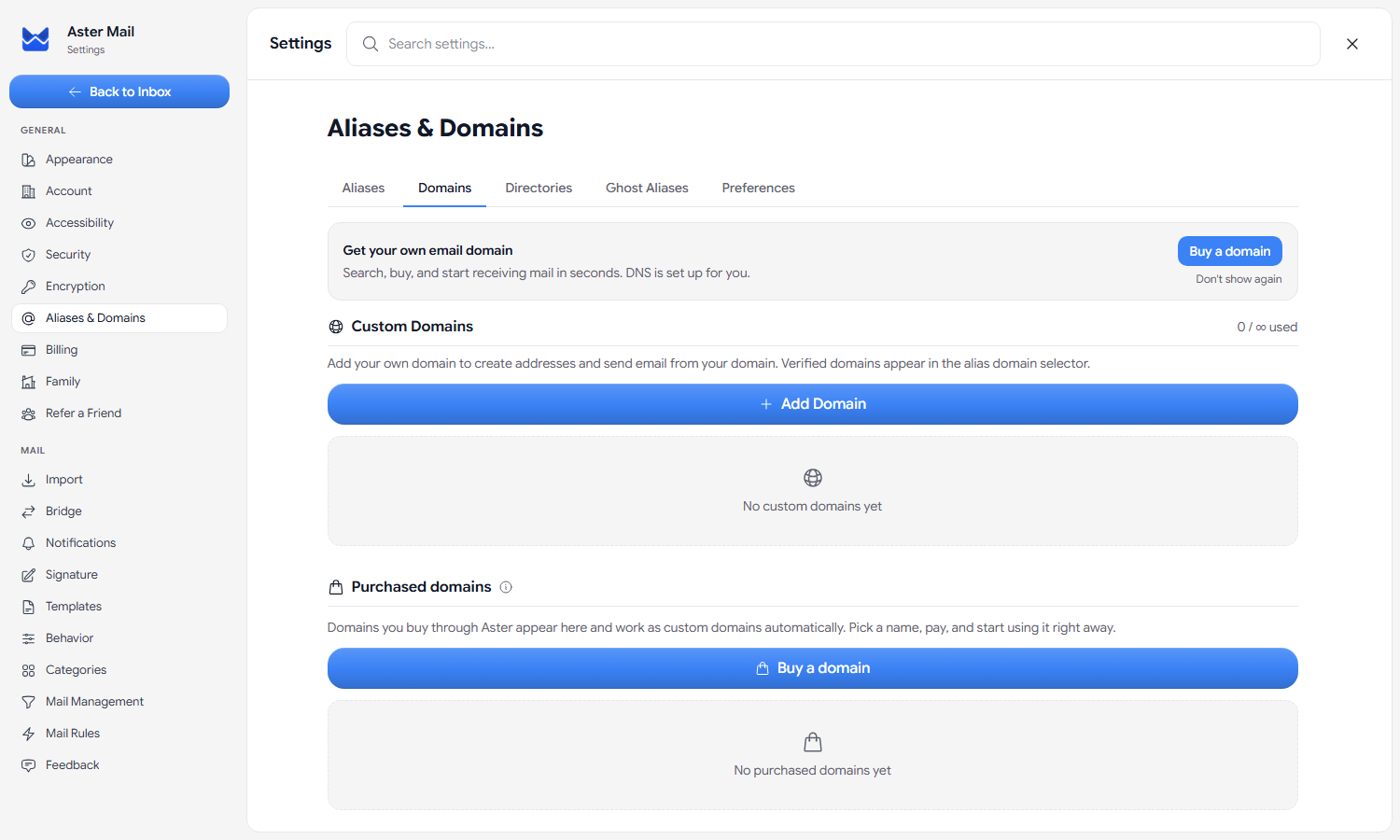
Open Settings, select Aliases & Domains, and switch to the Domains tab. Below your domain list, in the Purchased domains section, click Buy a new domain.
Step 2: Find your name
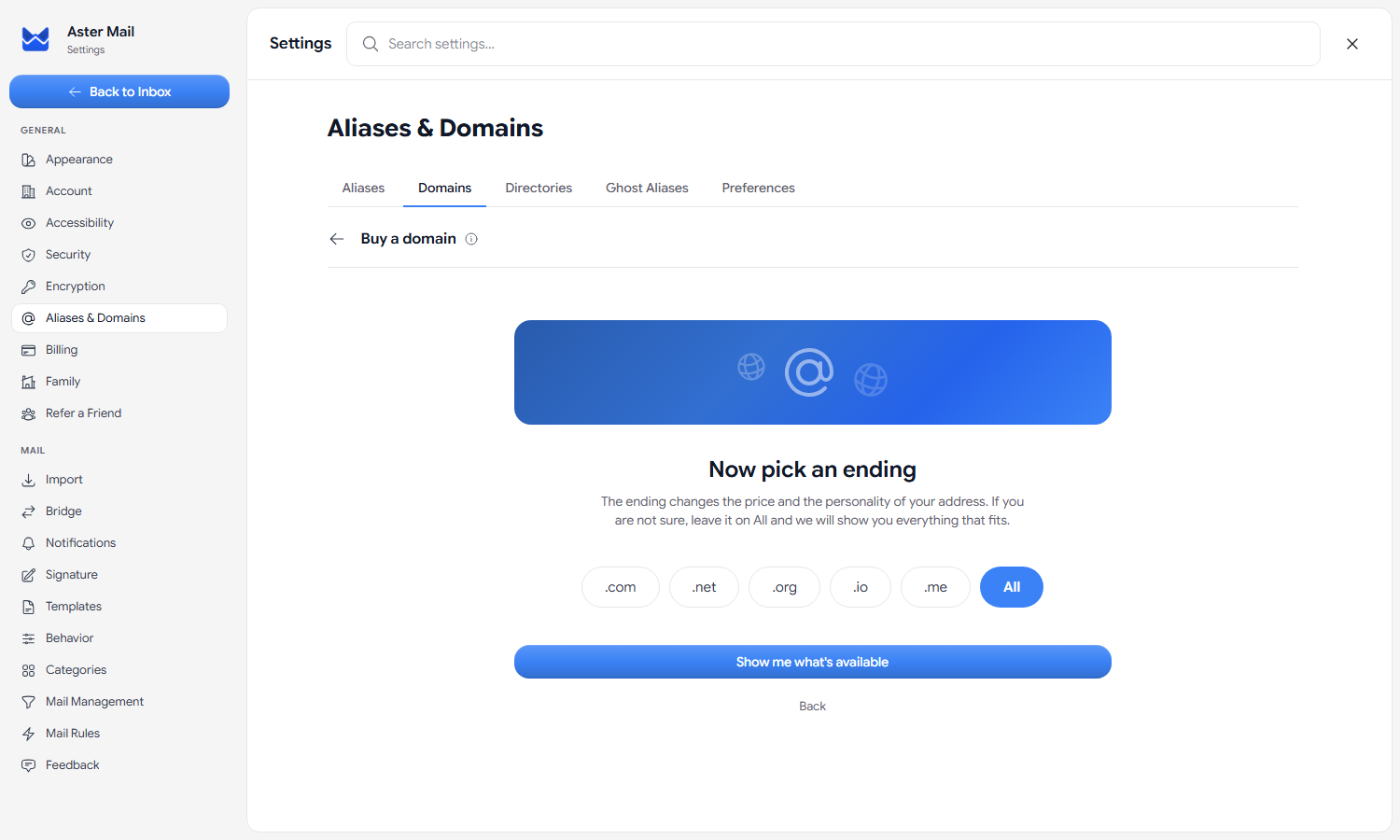
You don’t start with a bare search box. Aster first asks what name you want: your business, your project, or your own name.
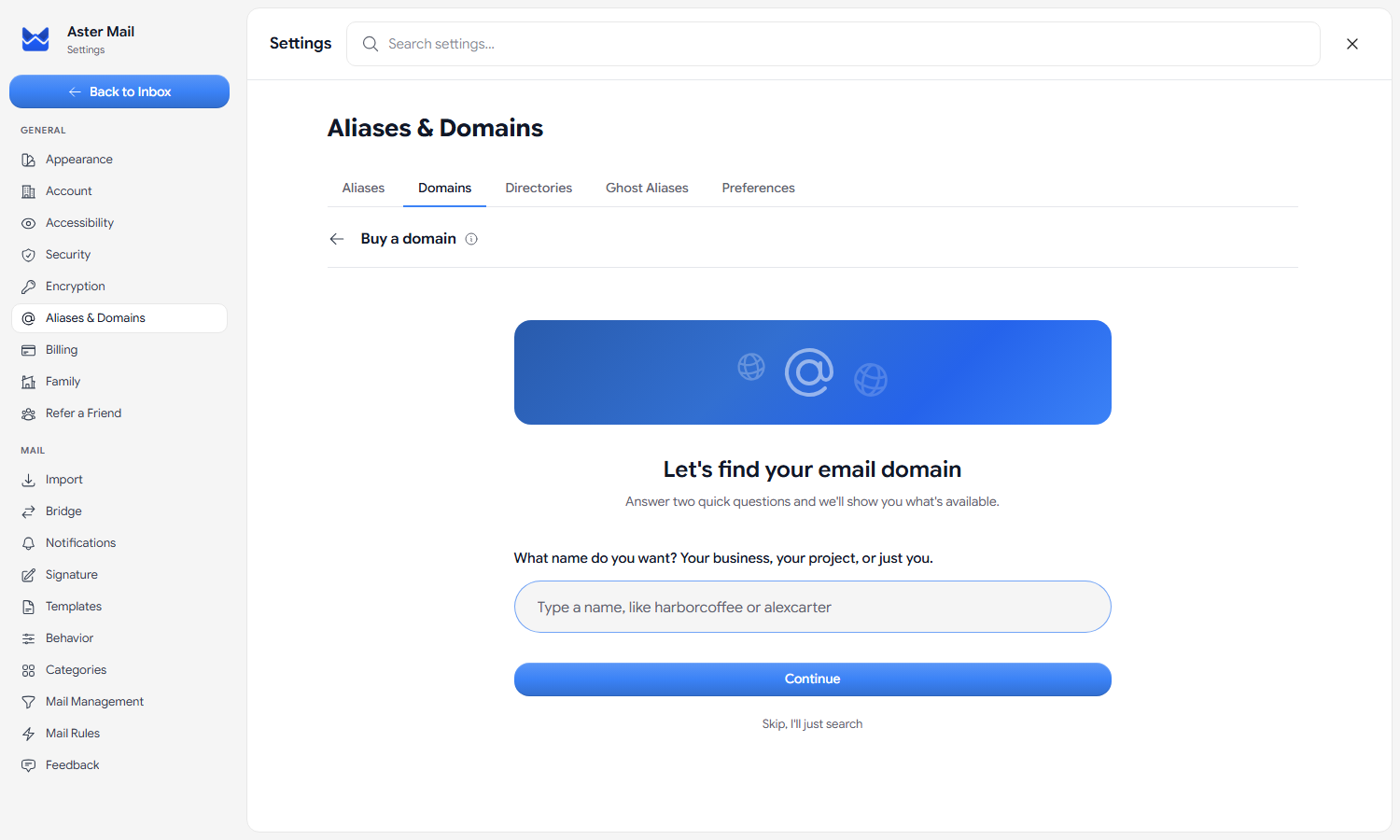
Then you pick the ending you prefer, or leave it on All to see everything that fits. The ending changes both the price and the personality of your address, so it’s worth browsing: .com is the classic, .me suits a personal address, and endings like .xyz are often the cheapest way in. If you already know exactly what you want, choose Skip, I’ll just search instead.
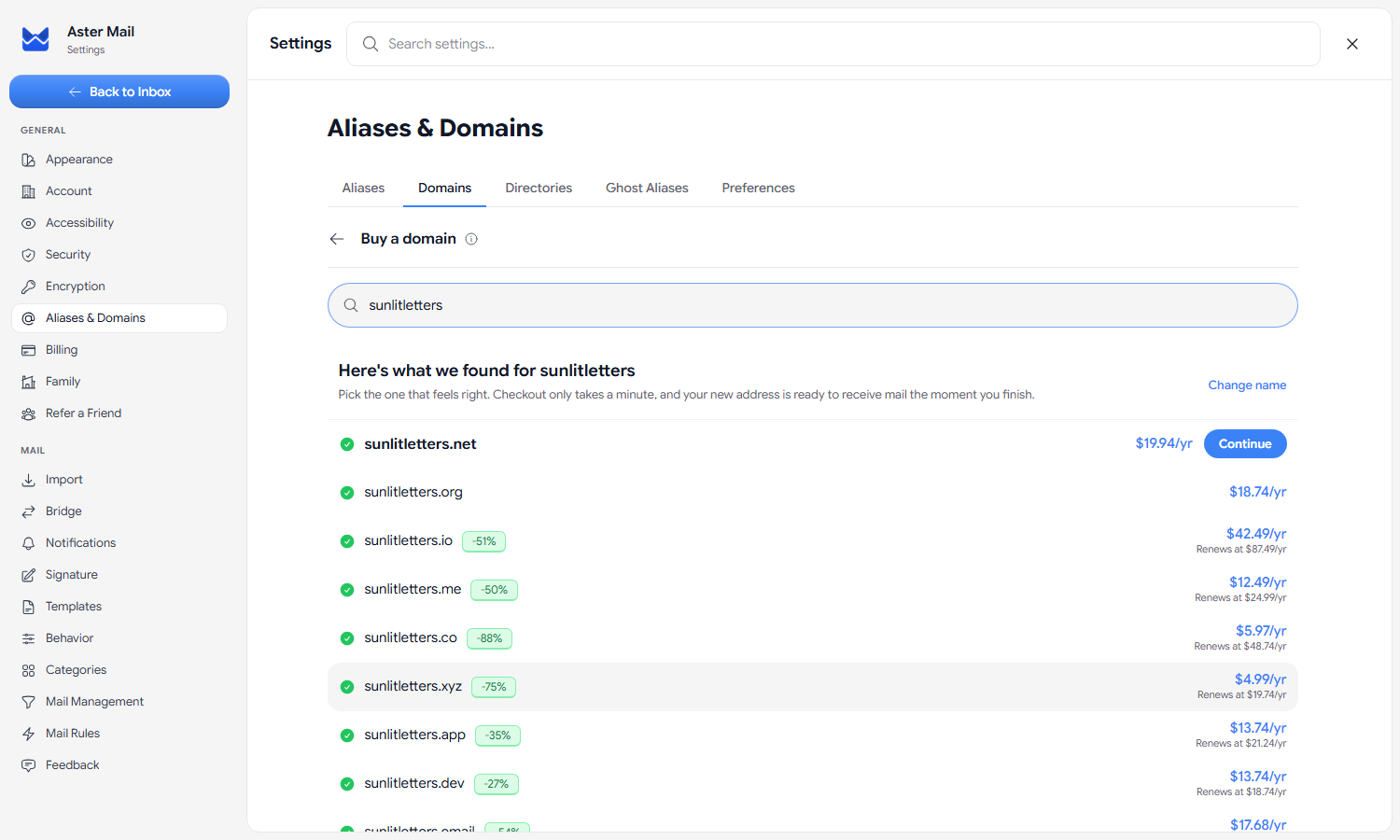
Every search checks live availability and pricing at the registrar, so what you see is what can actually be registered at that moment. Results cover more than a dozen popular endings, with the yearly price shown next to each one. If the first year is discounted, the renewal price is shown right below it, so you always know what year two will cost.
Step 3: Check out
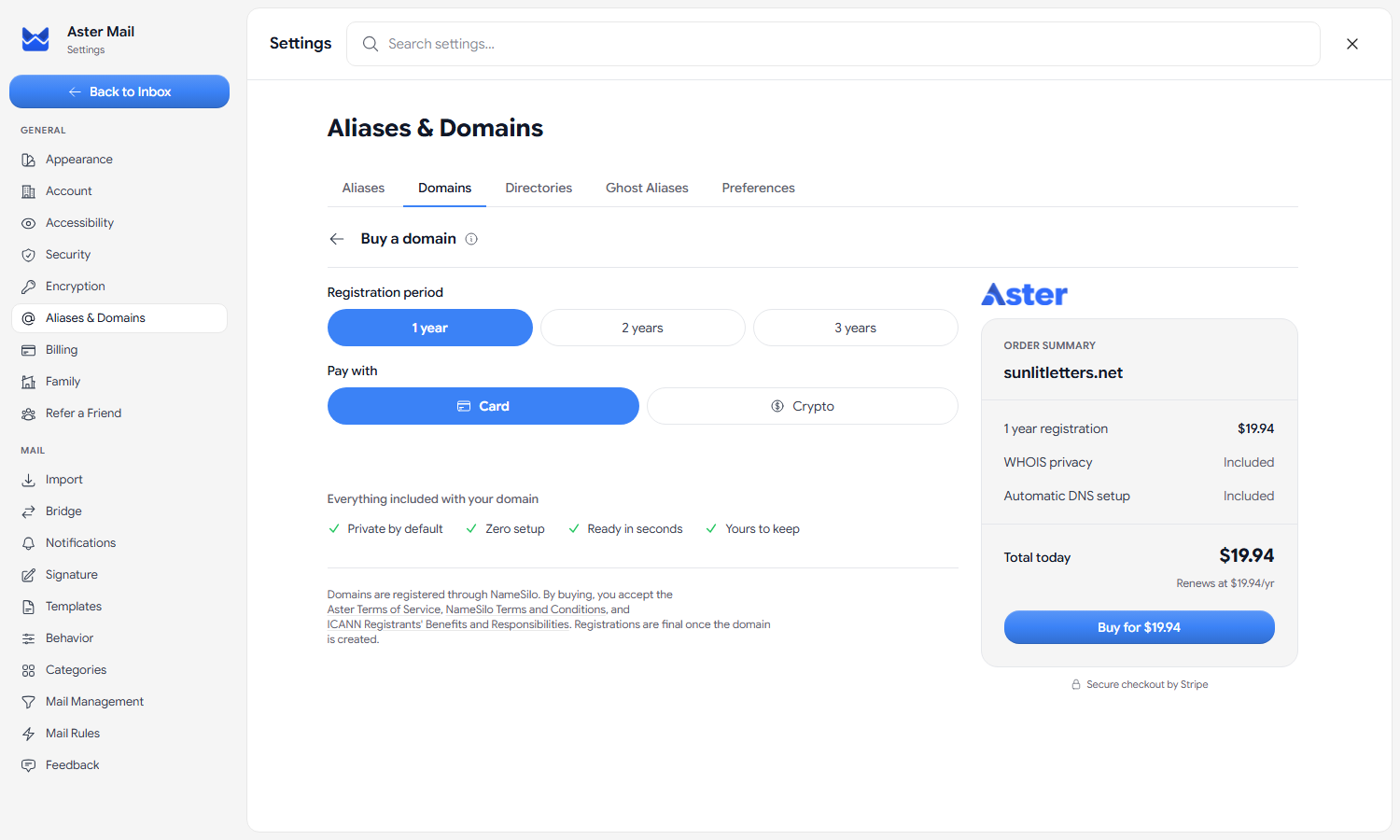
Pick your domain and you’re on the checkout page. Choose a registration period of one to three years and pay by card or crypto. Payment goes through the same secure Stripe checkout used everywhere else in Aster, and the order summary shows today’s total along with the renewal price.
That’s the entire process. Everything after the payment happens on its own, usually in a minute or two, and you can watch your order move through the stages on the same screen. When it’s done, your domain appears in your settings as a verified custom domain, ready to send and receive.
The rest of this post explains what’s actually happening during that minute, and what owning the domain means afterward.
What happens after you pay
The order summary lists two things included with every purchase: WHOIS privacy and automatic DNS setup. Between them, they cover most of the work, and most of the privacy pitfalls, of setting up a domain the traditional way.
First, we register the domain. Every domain registration is recorded in a public directory called WHOIS. Register a domain yourself without paying attention to the privacy settings, and your name and home address can end up published there for anyone to look up. When you buy through Aster, we register the domain through our registrar partner, NameSilo, on your behalf. You never create a registrar account, and your details never go into a WHOIS form; privacy is on from the first second, not an add-on you have to remember. Before spending your money, we also check one last time that the domain is still available and still costs what you were quoted. If someone registered it in the meantime, or its price rose above what you paid, we refund you automatically instead of forcing the order through.
Then, we set up the DNS. We clear out the registrar’s default parking records and create every record a mail domain needs:
- An MX record tells the world’s mail servers to deliver your domain’s mail to us.
- An SPF record specifies who’s allowed to send mail on your domain’s behalf.
- A DKIM record lets us cryptographically sign every message you send, using a key generated for your domain, so providers like Gmail can verify your mail really came from you.
- A DMARC policy tells receiving servers to send mail that fails those checks to spam, which protects your address from strangers who try to spoof (forge) it.
Set up by hand, that’s five required records copied between two dashboards, counting the one that proves you own the domain. Here it takes a few seconds, and you never see it.
Finally, we activate the domain in our mail infrastructure and mark it verified. To receive mail sent to any address at your domain, turn on Catch-all in the domain’s Advanced Settings, which is available on paid plans.
Start using your addresses
Once your domain is active, you can create an address for every part of your life: hi@ for people, bank@ for your bank, one address per newsletter. They all arrive in the same inbox, and you can disable any of them the day it starts attracting junk. If you turn on Catch-all, you can also make up an address on the spot whenever a form asks for one, then create it properly later, or not at all.
Your addresses get the same zero-access encryption as the rest of Aster Mail. When you create an address, the readable part is encrypted on your device before it’s stored. Our servers keep only the encrypted text and one-way hashes used to route incoming mail, so we can deliver a message to anything@yourdomain.com the moment it arrives without being able to read the list of addresses you’ve created.
Frequently asked questions
Do I need any technical knowledge? No. Searching, buying, and setup are all handled inside the app. You never touch a DNS record.
How many addresses can I create on my domain? Domain addresses come out of the same allowance as your aliases, which depends on your plan. You can see your current usage and limit at the top of the Aliases tab.
Will my name and address appear in WHOIS? No. We register the domain on your behalf with WHOIS privacy enabled from the moment it’s created.
Does it renew automatically? No, nothing renews without your approval. Your domain is registered for exactly the period you chose. When it’s close to expiring, we remind you, and you renew from the same screen, by card or crypto. If you don’t need the domain anymore, let it lapse.
Can I transfer my domain to another registrar later? Yes. ICANN, the organization that governs domain registrations, locks every newly registered domain against transfers for its first 60 days; that rule applies at every registrar, not only ours. Once the 60 days have passed, our support team will transfer your domain to any registrar you choose. Your address is never locked in.
Can I get a refund after the domain is registered? No, and this is the one thing to know before you buy: domain registrations are final once the domain is created. That’s how domain registries work, not our policy, and it’s why the price, renewal price, and registration period are all shown before you confirm. Anything that goes wrong before that moment, including the domain becoming unavailable mid-purchase, ends in an automatic refund.
Your name, your domain
If DNS setup is what’s kept you from owning your own email domain, that barrier is gone. Searching is free, checkout takes about a minute, and the setup handles itself. Open Settings, select Aliases & Domains, then Domains, and see what your name looks like with an ending of its own.

Founder and CEO of Aster Privacy.