Mail
Mail  Aster Bridge
  Tor access
 How to use email aliases
You have one email address, and at this point almost everyone has it.
The store you bought a lamp from in 2019 has it. So does the airline, the forum you posted on twice, a newsletter you never signed up for, and a landlord from two apartments ago. That one address is how a company recognizes you, how a data broker stitches you together across services that have nothing to do with each other, and how a single leaked customer database turns into three years of spam you cannot switch off.
And you cannot take it back. That is the part that gets people.
This is why we built aliases. An alias is a second address on your account. Mail sent to it lands in the inbox you already read, and you can send from it too. Making one takes about fifteen seconds. You give a different one to every service, so the store gets shopping@astermail.org, the recruiters get job-search@astermail.org, and your real address stays between you and the people who actually write to you.
Then, when one of those addresses starts pulling in junk, you know exactly who leaked it. Switch that one off. Everything else on your account keeps working like nothing happened.
Aliases have been in Aster since the start, but we have added a lot to them over the past few releases, so this walks through all of it.
Where to find it
Settings -> Aliases & Domains, on the Aliases tab. That is where everything below lives. Sending is the one exception, and that happens in the compose window.
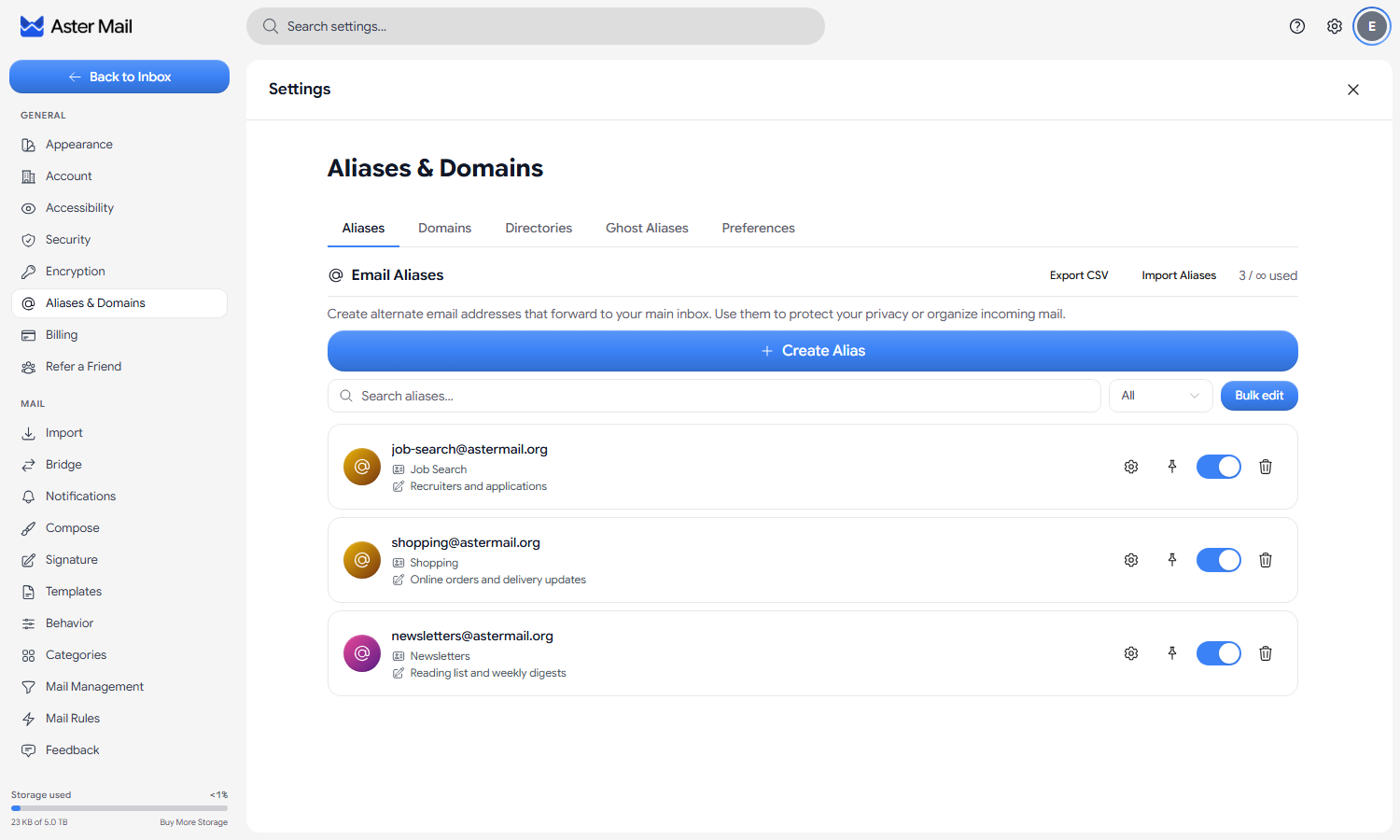
What an alias actually is
Not a second account. Not a folder. It is a real address that belongs to you and drops into the same inbox as everything else, so there is nothing extra to sign in to, no second password, and no other mailbox you have to remember to check.
It also runs in both directions, which is the part people underestimate. Mail sent to an alias arrives for you, and you can send from an alias as well, so your reply goes back out under the address the other person already knows instead of quietly handing over the one behind it. To the store you bought that lamp from, shopping@astermail.org is who you are. They never see anything else.
Now, if you only need an address for one message or one signup, and you would rather it clean itself up afterward, use a ghost alias instead. Those get created in the compose window, they live on our separate realiased.me domain, and they expire on their own. The aliases in this post are the permanent kind. You make them on purpose, you name them, and they stay until you say otherwise.
Creating one
Step 1: Pick the address
Click Create Alias and type whatever goes before the @. We check availability while you type, so you find out an address is taken before you commit to it instead of after.
A few rules on the name. Between 3 and 64 characters. Letters, numbers, dots, hyphens, underscores. It has to start and end with a letter or a number. Two dots in a row will not fly, neither will an address made only of digits, and a short list of names that mail systems keep for their own use is off limits to everybody, including postmaster, abuse, and no-reply.
Here is one detail that surprises people: we ignore dots when we match an incoming address. job.search and jobsearch are the same alias, and mail to either one arrives the same way. That is deliberate. It means nobody can register a near-identical copy of one of your addresses by shuffling a dot around.
Do not feel like you have to invent a name at all. The format menu next to the field will generate one. Words gives you a readable pair of words with a short random string on the end, and UUID gives you a short random hex string. Both are good for signups where no human is ever going to read the address, and that random chunk is doing real work. A guessable alias is an alias a spammer can hit without ever having been given it.
The menu on the right picks the domain. Everyone gets astermail.org and aster.cx, and paid plans add astermail.me and astermail.net. If you have connected a domain of your own on the Domains tab, or bought one through us, it turns up here too and behaves exactly the same.
Step 2: Name it and leave yourself a note
Two optional fields sit under the address. Fill both in. You will thank yourself later.
Display name is the sender name people see when you write from the alias. Set it to Job Search and your applications go out as “Job Search” instead of under your own name, which is what you want when an address represents a role rather than a person.
Note is private, and nobody but you ever sees it. Write down what the alias is for, because a year from now the reason you made mk-2026@astermail.org will be completely gone from your head. Notes are searchable too, so you can find an alias by what it does instead of by what it is called.
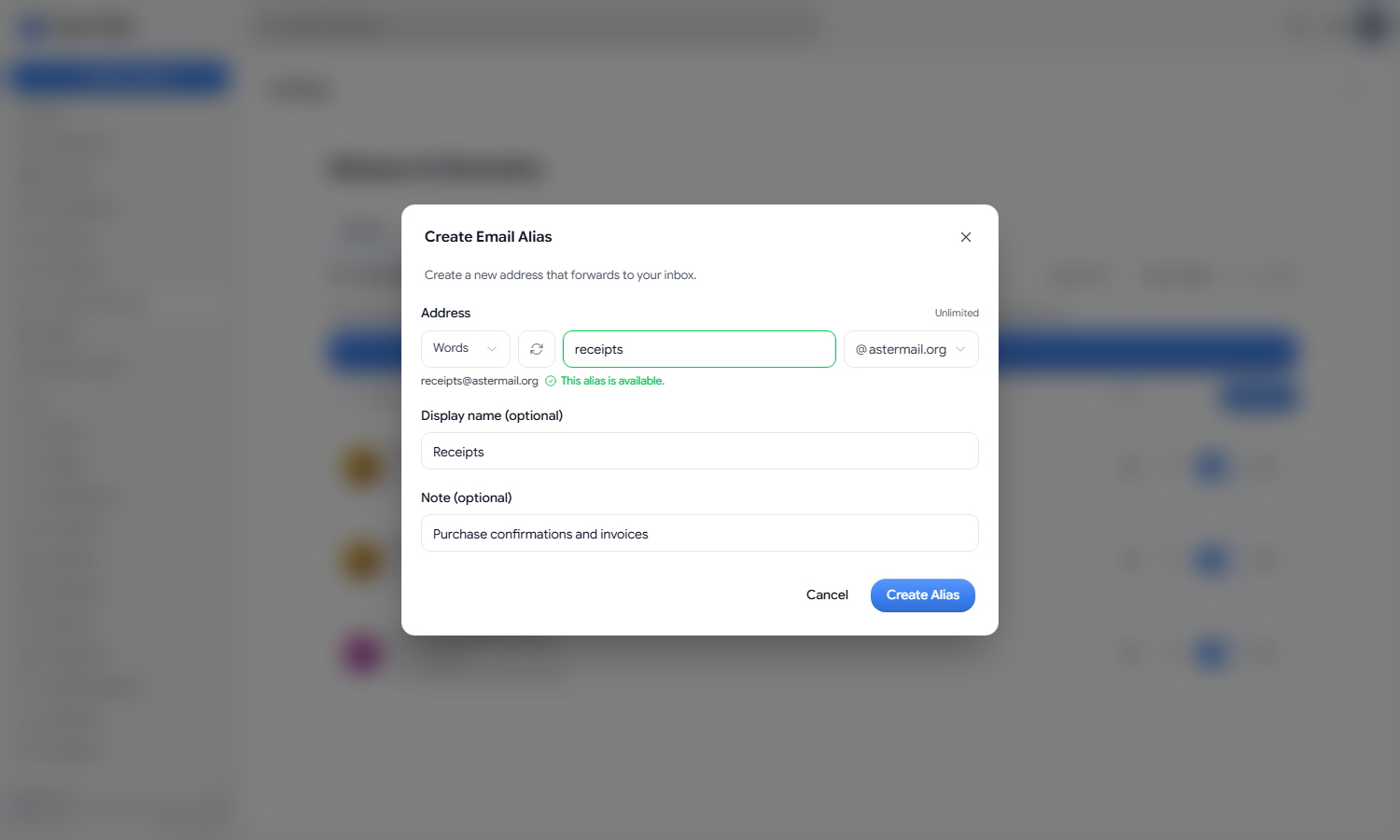
Step 3: Create it
Hit Create Alias. The address is live right away, mail sent to it arrives immediately, and it turns up in the sender menu in compose without you reloading anything.
Sending from an alias
Open compose and click the address next to From. Your own address sits at the top under Primary, every alias you have made is listed underneath with its display name below it, and Create Ghost Alias is at the bottom for the throwaway case. Pick one and the message goes out from that address.
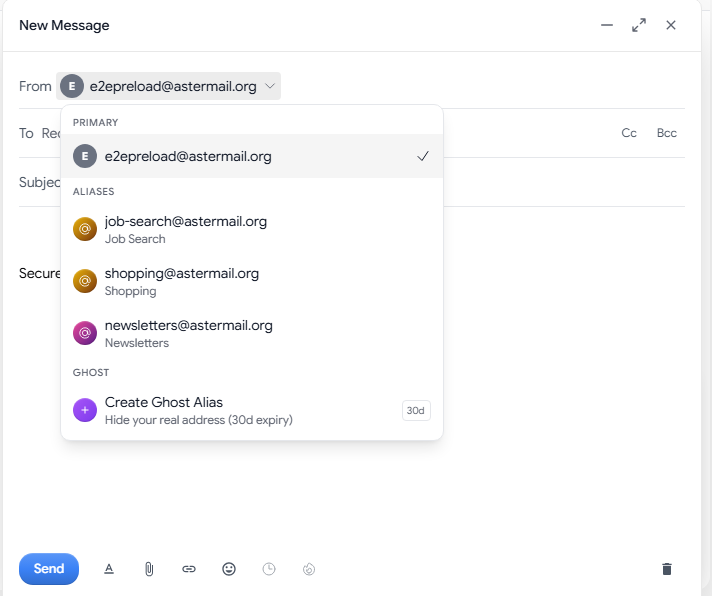
Replies work through the same menu. Open the reply, check the address next to From, and switch it to the alias the message came in on before you send. Getting into that habit matters, because answering from your real address is one of the most common ways people hand it over to a service they were deliberately keeping at arm’s length.
Got a lot of aliases? Two different pins help here. Pin an alias in the settings list and it sits at the top of the list. Pin one inside the sender menu instead and it becomes your preferred sender, so compose opens on that address every time rather than on whatever happens to be first.
There is one more piece, and it covers the case where you want to start a conversation from an alias rather than only reply to one. Add someone under Reverse contacts and we generate a dedicated address for that specific pairing. Your mail reaches them with the alias as the sender, and your real address never enters the picture. Each contact can be blocked on its own later without touching anybody else on the same alias. There is also a preference that puts the other person’s address inside the reverse alias, so you can tell at a glance who is writing instead of squinting at a random string.
What each alias can do on its own
Click the gear on any alias to open its settings. Up top are the details you set when you made it, all editable, plus a list of the websites you signed up to with this address so you have a record of where it went. Ten websites per alias.
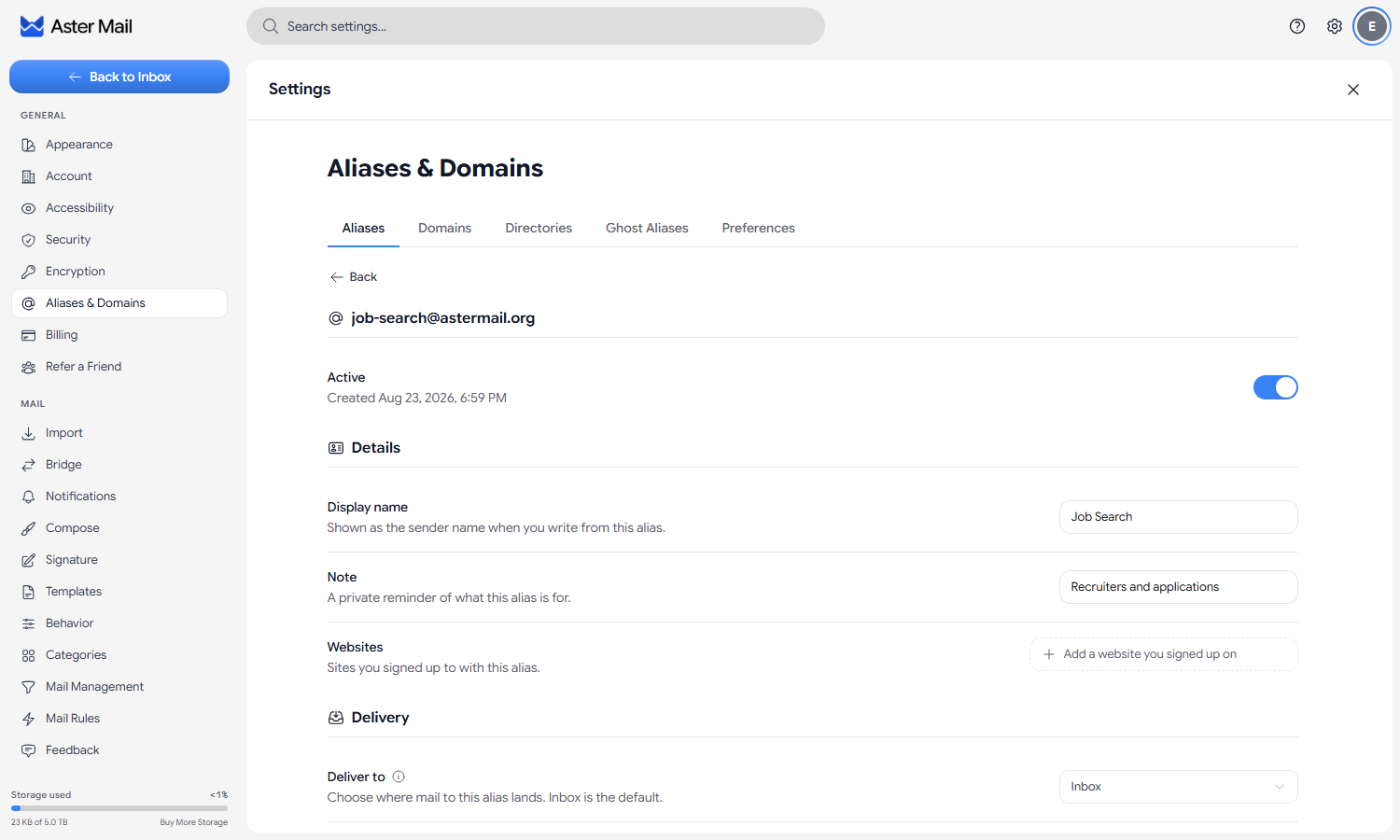
Below that is where an alias becomes more than an address.
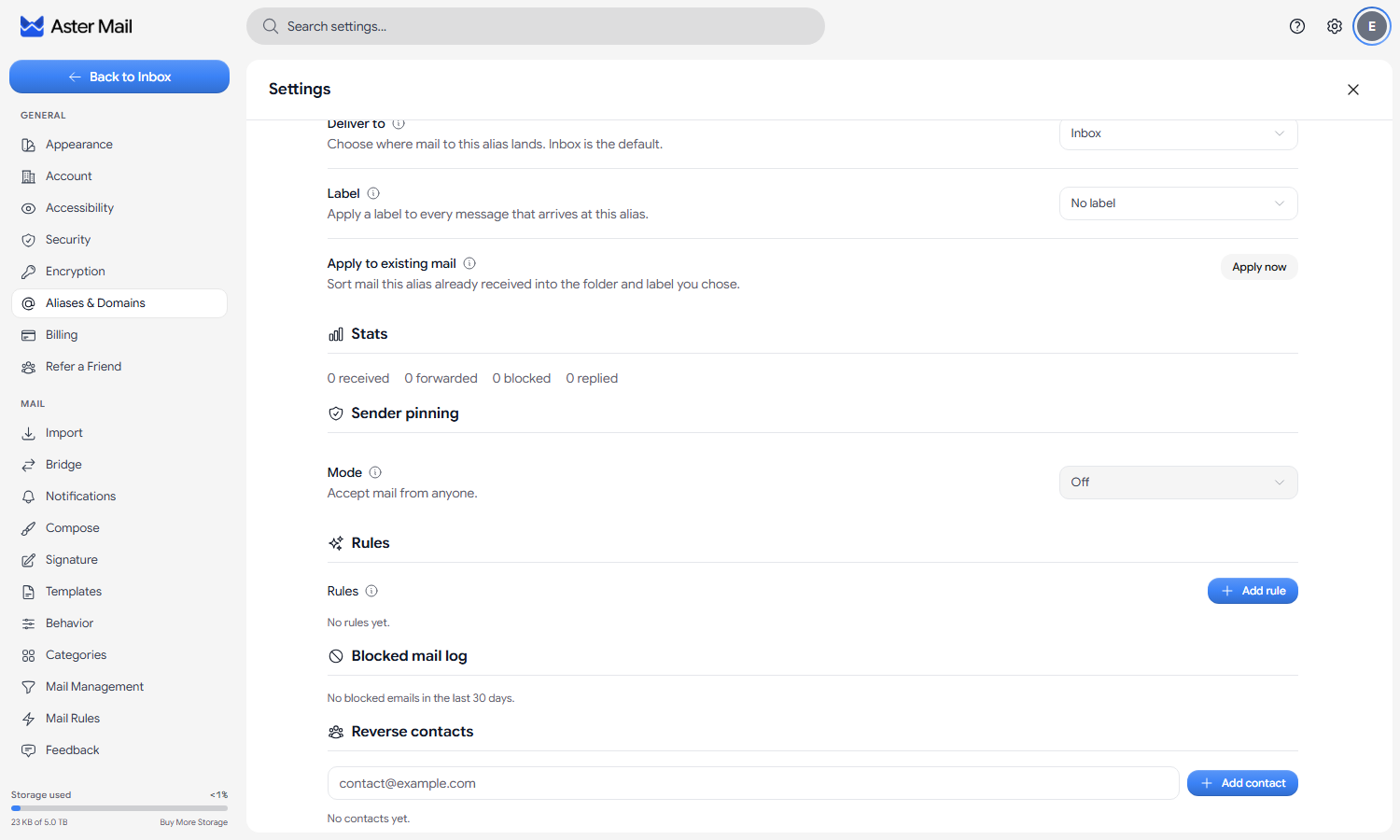
Delivery decides where mail to the alias ends up. Deliver to points the alias at a folder, so its mail lands there instead of the inbox with no rule needed. Label tags every message that arrives at the address. A rule that matches the message still wins over the folder you picked here, and the interface tells you when that is the case rather than letting you wonder why mail went somewhere else.
There is also Apply to existing mail. Change the folder or the label and hit Apply now, and everything that address already received gets sorted the same way, with a progress readout while it runs. You are not stuck with a clean setup that only applies going forward.
Rules run on mail as it arrives, before it reaches you. A rule is a condition plus an action. When the sender, recipient, subject, or any field contains, equals, starts with, ends with, or matches a pattern you give it, then block the message, move it to trash, or apply a label. Rules belong to the alias, so blocking a sender here does nothing to the rest of your mail, and that scoping is the whole point. A newsletter that got out of hand on one address should not need a filter that touches everything else you receive.
Sender pinning decides who is allowed to write to the address at all, and honestly it is the most useful thing on this page. Off takes mail from anyone. Lock to first sender takes whoever writes first and turns everybody else away, which is perfect for a one-off signup, because the only party who should ever use that address is the company you gave it to. Allowlist takes only the senders you list. This is how you kill a leaked address without losing the address, or the mail you actually wanted from it.
Blocked mail log shows what got turned away over the last 30 days and why, whether that was a rule, the sender filter, or the alias being switched off. No guessing about what might have been dropped. You get the reason.
Stats counts what the alias has handled: received, forwarded, blocked, replied. Fastest way to spot the address that quietly turned into a spam magnet, and it is usually pretty obvious which one it is once you look.
Directories, which make aliases for you
This is the feature people miss, and it is the best one here.
Pick a keyword. Say shopping. From then on, mail sent to anything.shopping@astermail.org creates a fresh alias on the spot, without you opening the app at all.
So you are sitting at a checkout page, you type randomstore.shopping@astermail.org into the email field, and the alias exists the moment the confirmation email hits it. You never think up another address again, every service ends up with a unique one, and each of those is a real alias afterward with its own rules, sender pinning, and stats. The dot is not the only separator that works, either. A slash, a plus sign, or a number sign in front of the directory name all do the same job. Directories start on Star, which gives you 5 of them, Nova gives you 30, and Supernova is unlimited.
Importing, exporting, and bulk edits
Coming from another service with a pile of aliases already? You do not have to rebuild them by hand. Import Aliases takes a CSV, a plain text list, or a JSON export, and gives you a row-by-row preview marking each address as one that will import, one that already exists, or one that is invalid. You pick the domain they land on, choose Skip existing or Re-enable if disabled for addresses you already have, and tick off exactly which rows to bring across. Proton Pass exports work too, though you need to export without encryption first.
Export CSV goes the other way, as CSV or JSON. You choose which of the four sources to pull in, being aliases, custom domain addresses, directories, and ghost aliases, and each one gets its own column list you tick through. Aliases carry address, display name, note, websites, enabled state, and created date. Domain addresses drop the note and websites. Directories give you the keyword, domain, auto-create, and color. Ghost aliases give you the address, enabled state, and expiry. One warning, which we put right on the export dialog: the file is not encrypted. Anyone who opens it can read every alias, note, and website in it. Keep it in your password manager or on an encrypted drive.
Bulk edit lets you select a batch of aliases and enable, disable, or delete them in one go. It is the quickest way to do a cleanup pass. Importing and bulk management are free on every plan. Export is a paid feature.
Switching one off, and deleting it
Every alias has a toggle in the list. Switching it off stops delivery but keeps the address, its rules, and its history intact, and that is usually what you actually want when a signup address starts filling up with junk. Turn it back on whenever. Nothing is lost in the meantime.
Deleting is the harder move, though by default it is still reversible. Deleted aliases go to Recently deleted, and restoring one from there is a paid tool. They stay in that list until you restore one or empty the list, which are both paid tools, so nothing disappears on you while you are still deciding. Either way the address stays reserved to your account permanently, so nobody else can ever register it and start receiving mail meant for you.
Two things before you go deleting anything. A new alias has to exist for 30 days before it can be deleted, which stops the feature being used to churn through addresses in bulk. Supernova and Family remove that wait, and every other plan keeps it. And if you would rather deletions were final, When deleting an alias switches from Move to trash over to Delete immediately.
Preferences that cover every alias
The Preferences tab holds the settings that apply to aliases generally, rather than to any one address.
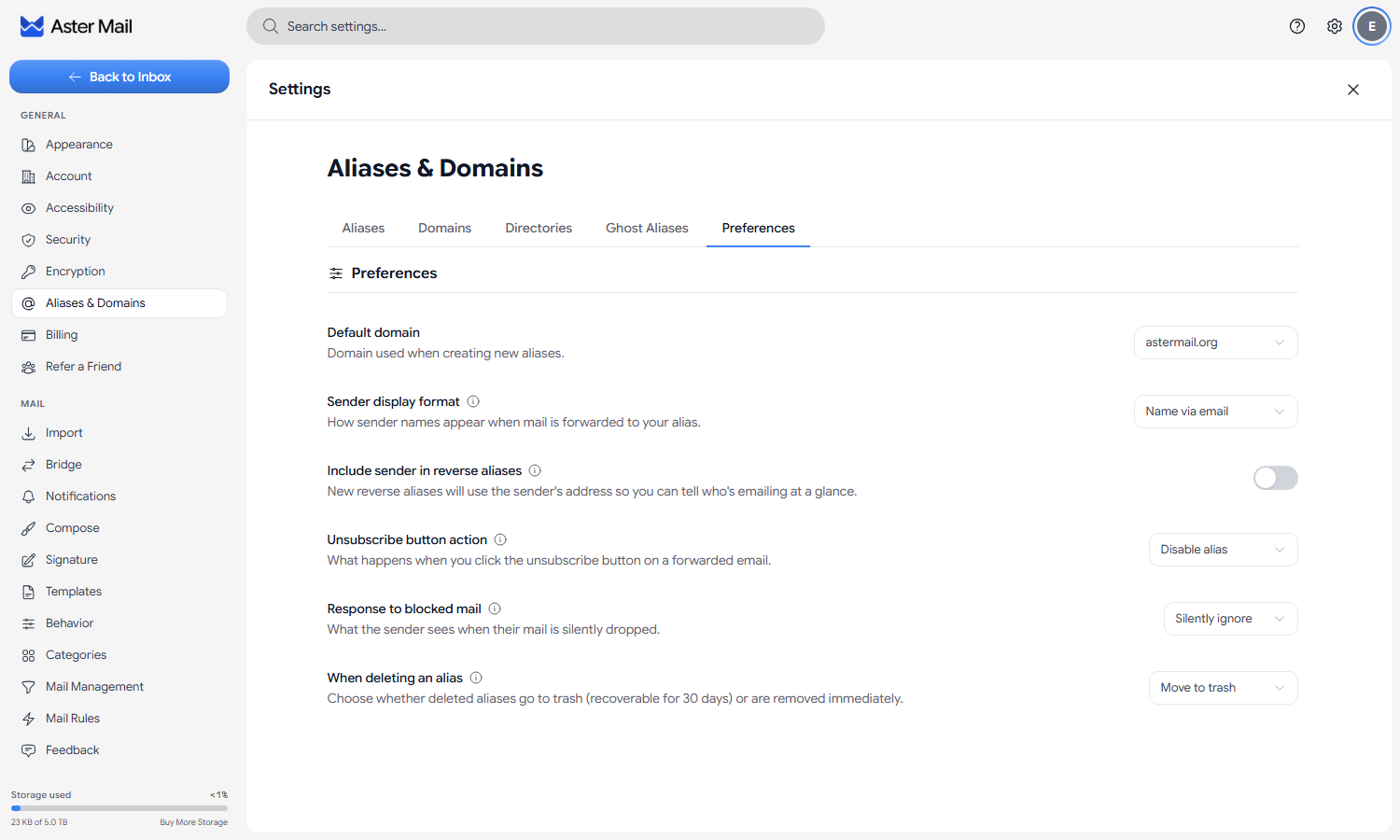
Default domain is what gets filled in when you make a new alias.
Sender display format controls how a forwarded sender’s name reads in your inbox, either “Name via email” or “Name - email at domain”.
Include sender in reverse aliases puts the other person’s address into the reverse alias itself, so new ones come out readable instead of random.
Unsubscribe button action sets what happens when you click unsubscribe on a forwarded message. Follow the sender’s own unsubscribe policy, switch the alias off, or block that sender outright.
Response to blocked mail sets what a blocked sender experiences. Silently ignore tells them nothing at all, which gives away no information about whether the address even exists. Reject (bounce) tells them it did not get through. Silent is the private option, bounce is the polite one.
When deleting an alias is the trash or immediate choice from above.
How many you get
Free gives you 5 aliases, Star gives you 15, Nova and above are unlimited. The addresses themselves work identically on every plan, so a free alias is not a lesser address. There are fewer of them.
The per-alias tools are where plans actually differ. Rules, sender pinning, stats, the blocked mail log, reverse contacts, custom display names and avatars, alias pinning, restoring a deleted alias, and CSV export are paid. Directories start at Star as well, capped per plan. Instant deletion is available on Supernova and Family. Creating aliases, importing them from somewhere else, and bulk management are open to everyone. Your settings page shows you where you stand and what a locked feature would actually give you, rather than graying it out and leaving you to work it out.
Why we encrypt the address itself
The name you give an alias says something about you.
job-search. divorce-lawyer. therapy-billing. Read somebody’s list of aliases and you learn a lot about what is happening in their life right now, which is exactly why we do not keep that list in a form we can read.
The readable part of every alias, along with its display name and your private note, gets encrypted on your device before it ever reaches our servers. What we store is the ciphertext plus a one-way hash of the address. That hash is enough to route an incoming message to the right account the instant it lands, and useless for working out what the address spells. We deliver your mail without ever knowing you have an address called job-search. If our database were taken tomorrow, whoever took it would be in the same position we are.
That said, and we said the same thing in the ghost alias post, it would be misleading to claim there is no link on our side whatsoever. Our servers have to know which account an address belongs to or delivery would not work at all, and that mapping exists internally, protected the same way the rest of your account data is. What the encryption guarantees is that the alias itself cannot be read by us, or reconstructed by anyone who walks off with the database. It does not make the alias invisible to our own infrastructure. It makes it unreadable and unlinkable to outsiders.
As always, our client apps are open source under AGPLv3 over at github.com/Aster-Privacy if you want to read how your device encrypts your aliases, and we are still looking for contributors.
Go make one at Settings -> Aliases & Domains, then hand it to the next thing that asks you for an email address.

Founder and CEO of Aster Privacy.