Mail
 Calendar
 Aster Bridge
 Tor access
How to spot a phishing email
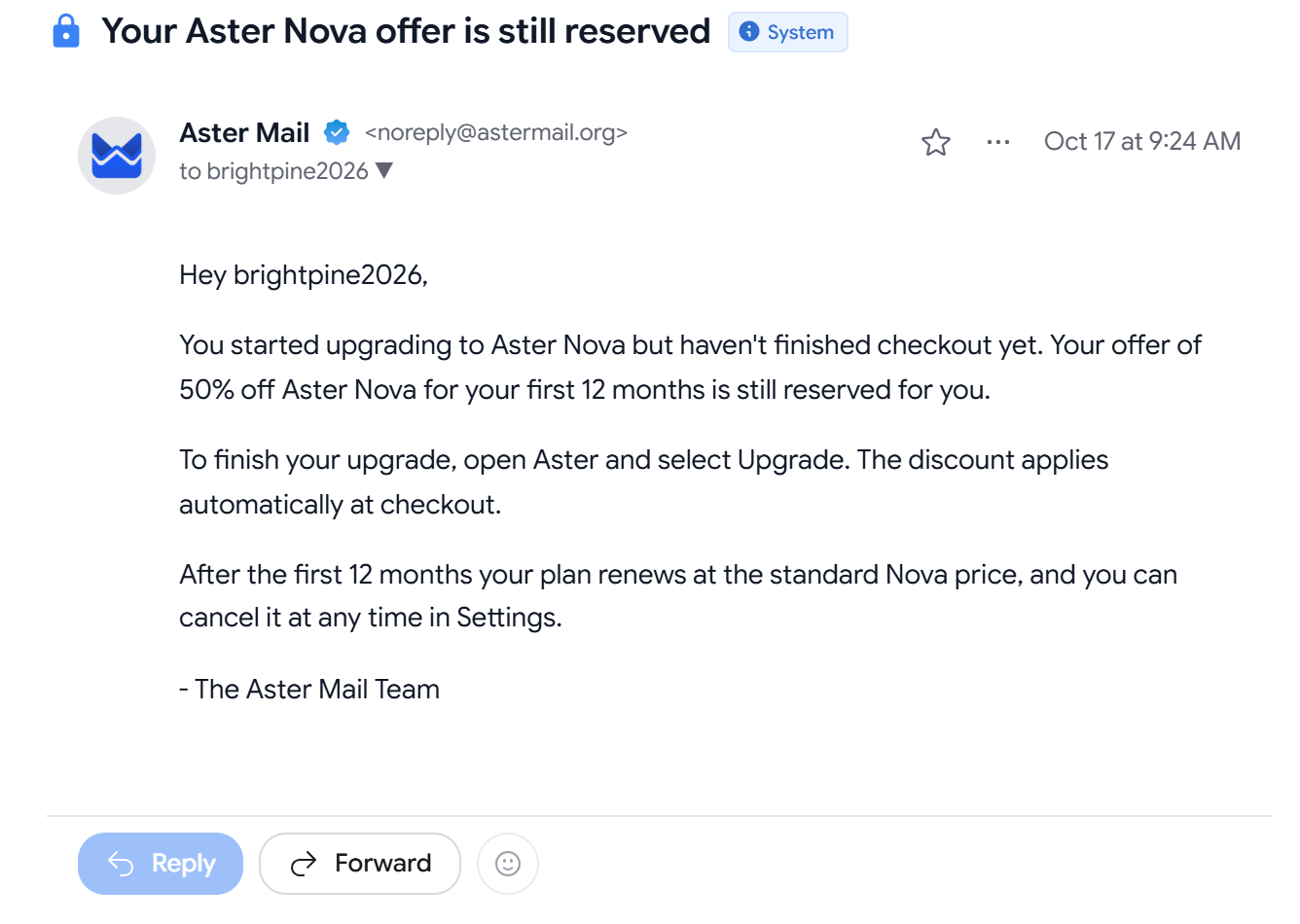
For a long time the advice about phishing was to look for bad spelling and strange grammar. That advice has aged badly. Scammers now write clean and polite messages that copy the look of real companies down to the logo in the footer, and a lot of them are written with the same AI tools that everyone else uses.
The signs that still work are less about how a message is written and more about what it asks you to do and where it really comes from. This post goes through those signs, shows you how to check a sender and a link yourself, and covers what to do when something gets past you.
The signs that still work
It wants you to act right now. Almost every phishing email puts you under time pressure. Your account will be closed today, a payment failed, or a package is waiting and will go back to the sender. The goal is to get you clicking before you stop to think.
It asks for something a real company would not ask for by email. Real services do not ask you to confirm your password, share a verification code you receive, or pay an invoice through a link from a sender you do not recognize. A message that asks for any of those deserves a second look.
The sender’s address does not match the name. The display name can say anything, so it might read “Billing Team” while the real address underneath is a random account at a free provider. Many apps only show the name until you select it.
The domain is almost right. Scammers register addresses that look like the real one at a glance, with a swapped letter, an extra word, or a different ending. Something like support@paypa1-billing.com is hard to catch when you are moving fast.
The link goes somewhere else. The text of a link can say anything at all. What matters is the address it actually opens, and in a phishing email that address usually has nothing to do with the company in the message.
Replies go to a different address. Some phishing emails come from an address that looks fine but set a Reply-To header that sends your answer somewhere else entirely. This is common in fake invoice and boss scams.
It does not know your name. Messages that start with “Dear customer” or that use the first part of your email address in place of your name are often sent in bulk to a long list of addresses.
There is an unexpected attachment. Invoices, shipping labels, and voicemail files that you were not expecting are a classic way to deliver malware. Be careful with HTML files and archives in particular.
How to check a sender
Select the sender’s name to see the full address, and read the part after the @ slowly. Then compare it with an older email you know is real from the same company.
Your mail app can also show whether the message passed the checks that prove where it came from. These checks are called SPF, DKIM, and DMARC, and our post on how they work explains them in plain language. A message that claims to be from your bank and fails all of them is almost certainly fake.
How to check a link
On a computer, hover over the link without clicking and look at the address that appears at the bottom of the window. On a phone, press and hold the link to see the address before you open it.
Read the domain from right to left, starting at the first single slash. In https://login.yourbank.com.secure-check.net/account, the real domain is secure-check.net, and everything before it is decoration.
The safest habit is to skip the link entirely. Open the app you already have, or type the company’s address into your browser yourself, and check your account from there.
How Aster warns you
We check every incoming message for the signs above, and when one looks wrong, a banner at the top of the message tells you why. Here are some of the things that trigger it:
- The message failed SPF, DKIM, or DMARC for the domain it claims to come from.
- The display name copies a well-known brand, but the address does not belong to it.
- The display name shows one email address while the real sender is another.
- Replies are set to go to a different domain from the sender’s.
- The sender appears on a phishing blocklist.
- A link points to a lookalike of a well-known domain.
When a message looks clearly dangerous, we turn its links off as well, so a slip of the finger does not take you anywhere. If you know a flagged message is safe, select Not phishing to clear the warning.
Messages from our own official addresses show an Official Aster address badge. We will never ask for your password or your recovery codes by email, so any message that does is not from us. Our post on how to tell a real Aster email shows what that badge looks like.
What to do if you already clicked
Move quickly, and work through it in this order:
- Close the page and do not enter anything else on it.
- If you typed a password, change it right away on the real site.
- Change that password everywhere else you used it as well.
- Sign out of all other sessions from your account settings.
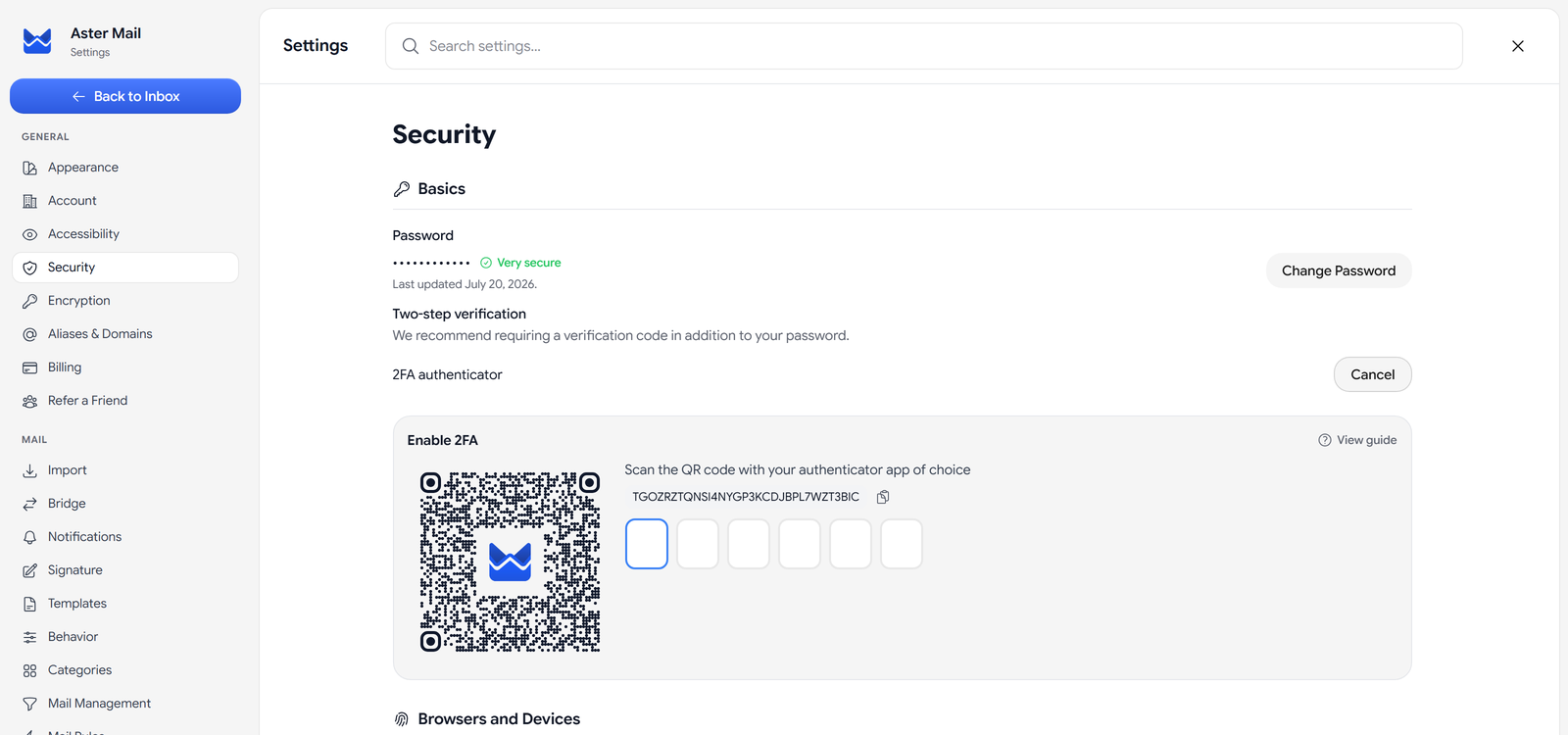
- Turn on two-factor authentication, or better, add a passkey.
- Tell your bank right away if you entered card or bank details.
- Run a malware scan if you opened an attachment.
On Aster, you can find Sign out all other sessions in your security settings, and turning on login alerts sends you an email whenever a new device signs in. Our posts on passkeys and two-factor authentication cover the settings that make a stolen password useless on its own.
Report it
Reporting a phishing email helps protect the next person who gets it. Forward it to the company being impersonated, since most of them have an address for exactly this. Then delete it from your inbox.

Founder and CEO of Aster Privacy.