Mail
Mail How to use categories and custom categories
Most of the mail that arrives in an inbox each day was never really written to you. Receipts, shipping updates, social notifications, and newsletters pile up around the occasional message from an actual person, and the busier your inbox gets, the easier it becomes to miss the message that mattered. Categories are how Aster Mail handles this. Your inbox is sorted into tabs along the top, each kind of mail has its own place, and the messages written by real people stay front and center. When the built-in tabs don’t fit how your mail actually flows, you can build your own.
Before getting into the how-to, one thing is worth understanding, because it is the part most providers get wrong. All of this sorting happens locally, on your device. Gmail and Outlook categorize your mail by reading it on their servers. Aster can’t do that, since your messages are encrypted before we ever store them, so the classification runs inside the app, after your mail has been decrypted on your device. Which tab an email belongs in is something your device knows and your provider doesn’t.
Where to find it
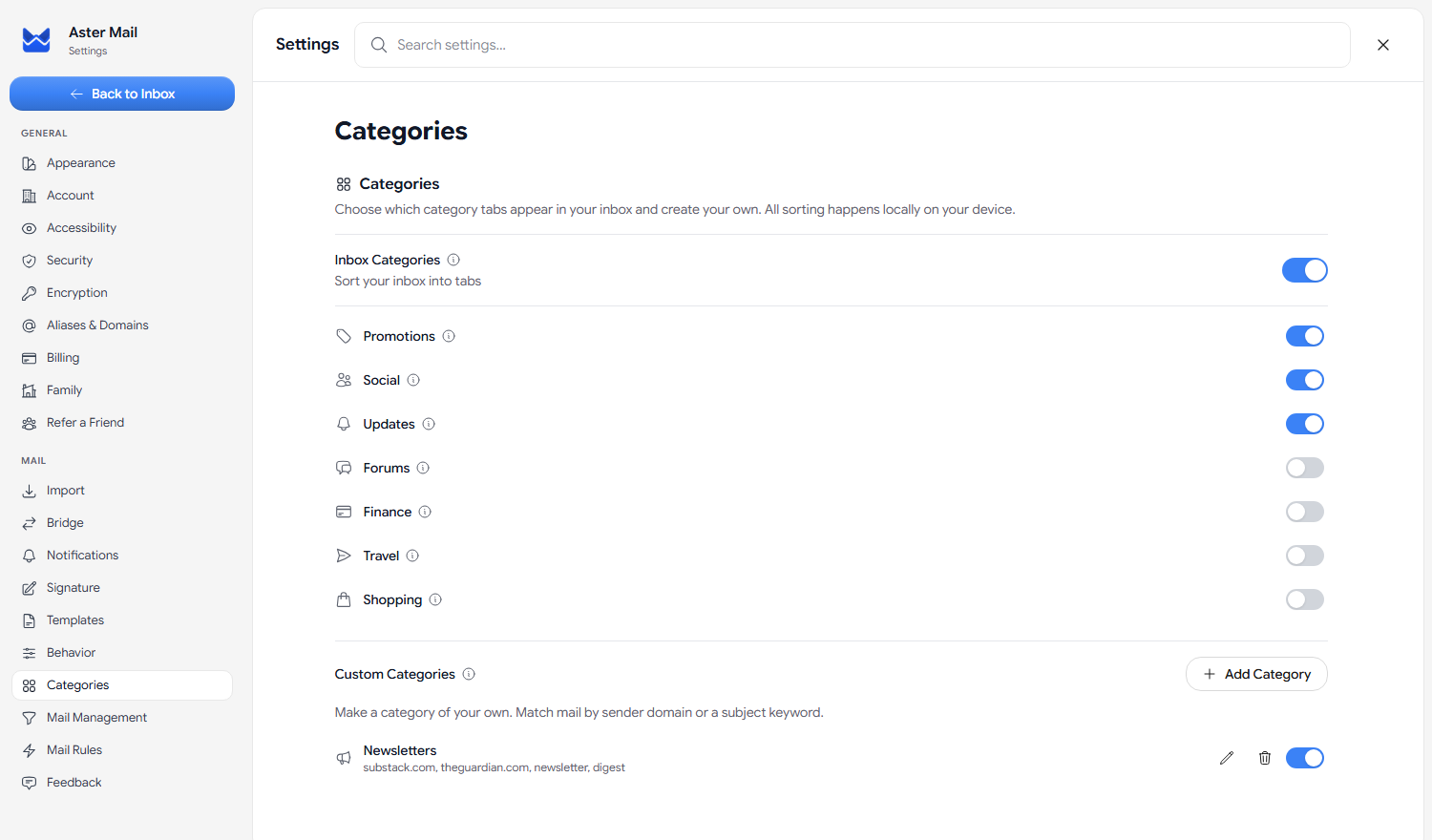
Open Settings, then Categories. The Inbox Categories switch at the top turns the whole feature on or off, and below it there is a toggle for each built-in category. Everything in this guide happens on this one page.
The tabs you get out of the box
Four tabs are on by default:
- Primary is everything that doesn’t match another category, and it is always on. Personal mail from real people lives here.
- Promotions collects marketing emails, offers, and deals.
- Social holds notifications from social networks and communities.
- Updates is for receipts, confirmations, and service notifications.
Four more are included but switched off out of the box: Forums for mailing lists and discussion groups, Finance for statements and alerts from banks, Travel for bookings and itineraries, and Shopping for order confirmations and delivery notices. Flip any of them on and the tab appears in your inbox immediately, already sorted, since everything is computed on your device rather than waiting on a server to reprocess your mail.
Turning a tab off doesn’t delete or strand anything. Messages that would have landed there fold back into the nearest sensible tab instead, so shopping mail goes to Promotions, finance, travel, and forum mail go to Updates, and if you switch the whole feature off, your inbox simply goes back to being one list.
How Aster decides where mail goes
The classifier relies on signals that are hard to fake rather than trying to guess what a message is about. It looks at the sender’s domain, and at the domains that actually authenticated the message, so a brand that sends through a mailing platform is still recognized as that brand. It also reads the headers that bulk senders are required to carry, unsubscribe headers and mailing list markers and the like, along with subject lines that look like receipts and confirmations.
There is one rule we hold above the rest: personal mail never leaves Primary. A message that carries none of the automation markers is treated as written by a human and stays put. We tuned it this way on purpose, because a promotion showing up in Primary is a minor annoyance, while a message from an actual person buried in Promotions is a real problem.
Making a category of your own
The built-in categories cover the common shapes of mail, but every inbox has patterns of its own. Maybe you want every newsletter in one place, or everything from your kid’s school, or all the mail connected to the house you’re buying. Custom categories exist for exactly this, and creating one takes about a minute.
Step 1: Name it and pick an icon
On the Categories settings page, click Add Category. Give the category a name, up to 40 characters, and pick one of the eighteen icons. The icon is what shows on the tab in your inbox, so choose something you’ll recognize at a glance.
Step 2: Tell it what to match
There are two kinds of matching, and you can use either one or both together:
- Match sender domains. A comma-separated list of domains, like
substack.com, theguardian.com. Any mail from these domains lands in your category, and subdomains count automatically, so a rule forexample.comalso catches mail fromnews.example.comwithout you having to list every address a company sends from. - Match subject keywords. A comma-separated list of plain words, like
newsletter, digest. If any of them appear in the subject line, the email lands in your category. Capitalization doesn’t matter.
You can add up to 25 domains and 25 keywords to a single category, and if your lists run long, the expand button in the corner of the dialog turns the single-line fields into full text boxes that are easier to work in. The preview at the bottom shows how the category will look before you save it.
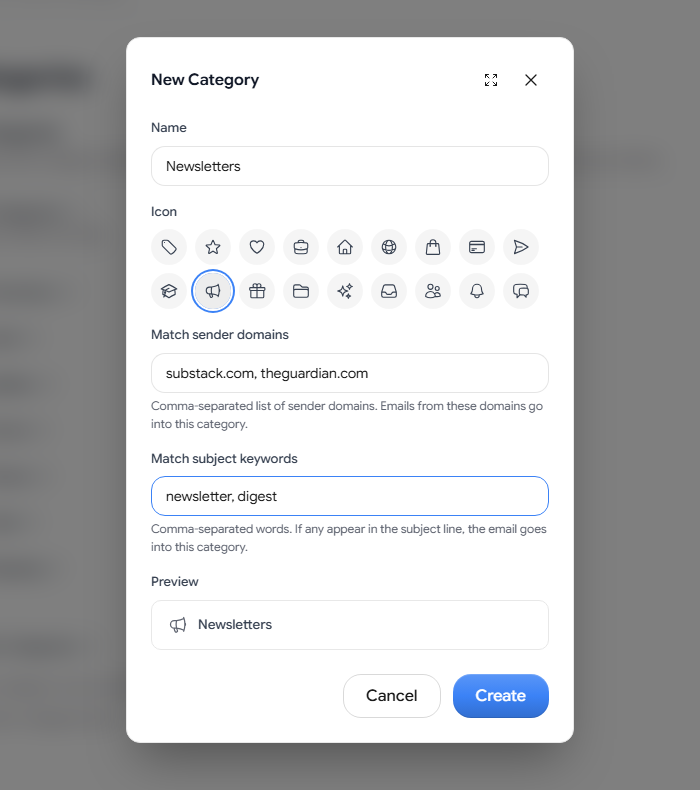
A custom category matches when the sender’s domain fits or the subject contains one of your keywords, and custom categories are always checked before the built-in ones. When you say that mail from a certain sender belongs somewhere specific, that takes priority over whatever the automatic classifier would have decided. Your bank’s statements can live in a category called “House Stuff” if that is how you organize things, and the Finance tab will respect it.
Step 3: Create it and check your inbox
Click Create and that’s it. The category appears in your settings list with its own toggle, edit, and delete controls, and a new tab shows up in your inbox next to the built-ins, with the icon you chose and a badge when new mail arrives in it.

When a message lands in the wrong place
No classifier gets everything right, so yours doesn’t get the final word. Any email can be moved to a different category from the message actions, and a message you move by hand stays where you put it. The classifier never overrides a decision you made yourself, so if a newsletter you actually read keeps landing in Promotions, move it to Primary once and it stays there.
Editing, pausing, and deleting
- Edits apply immediately. Change a category’s domains or keywords and the new rules take effect from that moment.
- You can pause instead of deleting. Toggling a custom category off keeps all its rules saved but stops the sorting, which is handy for a category that is only useful some of the time, like one you built for tax season.
- Deleting is safe. Removing a custom category never removes any mail. Messages go back to whichever built-in tab they would have matched in the first place.
- Your categories follow you. Like the rest of your preferences, categories sync between your devices as encrypted data, so a category you build on your laptop is already there when you open Aster on another machine.
How many you can create
You can run up to ten custom categories at a time, which is more than most people end up needing. Depending on your plan the ceiling may be lower, and your settings page always shows exactly where you stand. The built-in categories are available to everyone regardless of plan.
Why we sort on your device
Your categories, your rules, and the decisions about which mail goes where are stored as encrypted preference data that only your devices can read. We never see that you have a category called “Job Search”, we never see which senders you route into it, and we could not build an advertising profile from your filing system even if we wanted to, which we don’t.
How you file your mail says a lot about how you live, and when a provider does the filing on their servers, they learn all of it as a side effect. Doing it on your device costs us more engineering effort, and what you get back is an inbox that organizes itself without reporting to anyone.
Open Settings, then Categories, and give it two minutes. Turn on the tabs you’ll use, build one custom category for the mail you’re always hunting for, and let your inbox do the filing from here on.

Founder and CEO of Aster Privacy.